Known IPs
Known IPs let you label IP addresses you recognize so they appear with a friendly name in your DMARC report records. This makes it easy to distinguish trusted senders, such as your email provider or marketing platform, from unknown sources.
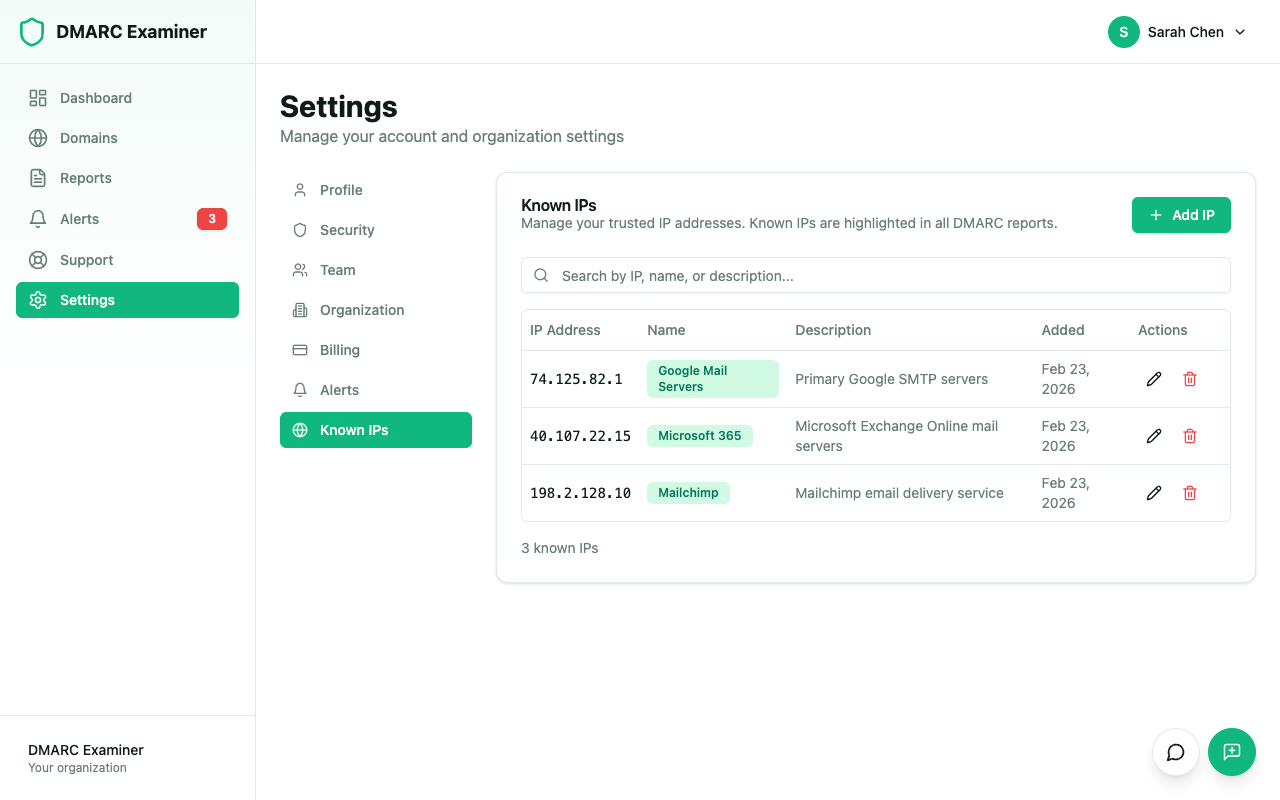
How Known IPs Appear
When an IP address in a DMARC report record matches one of your known IPs, it is displayed with a green badge showing the name you assigned. This lets you quickly scan report data and focus on unfamiliar senders that may need investigation.
Adding a Known IP
From Settings
- Go to Settings > Known IPs
- Click Add
- Enter the IP address
- Enter a name (required) to identify the sender (e.g., "Google Workspace", "Mailchimp", "Internal Mail Server")
- Optionally add a description with more detail
- Save
From Report Records
When viewing a DMARC report's individual records, you can mark any IP as known directly:
- Open a report and view its records
- Click the + button next to any IP address
- Enter a name and optional description
- The IP is immediately added to your known IPs list
From a New Sender Alert
The fastest path when a New Sender alert is already waiting for review:
- Go to Alerts and click the info button (ℹ) on any New Sender row
- Review the Sender Insight panel (rDNS, ASN, SPF/DKIM history, verdict)
- Click Approve & trust this sender
The IP is added with an auto-derived name (trusted provider when the ASN is recognized, otherwise the rDNS or the organization name), the alert is resolved, and any related alerts for the same IP across your other domains can be bulk-resolved from the follow-up dialog.
Provenance
Known IPs created from an alert show where they came from in the description column:
Approved from alert by Jane Doe
Click "alert" to reopen the original Sender Insight panel in read-only mode. This lets you retrace why the IP was trusted without digging through history.
Editing and Removing
To edit or remove a known IP:
- Go to Settings > Known IPs
- Click on an existing known IP entry
- Update the name or description, or remove it entirely
Fields
| Field | Required | Description |
|---|---|---|
| IP address | Yes | The IPv4 or IPv6 address (must be unique across your organization) |
| Name | Yes | A short label to identify the sender |
| Description | No | Additional context about the IP or sender |
Use Cases
- Email service providers — Label IPs from Google Workspace, Microsoft 365, or other providers so they are instantly recognizable
- Marketing platforms — Identify IPs from Mailchimp, SendGrid, or other transactional email services
- Internal mail servers — Tag your own infrastructure IPs
- Third-party services — Label IPs from CRM systems, ticketing platforms, or other services that send email on your behalf