Alert System
DMARC Examiner can send you automatic notifications when it detects situations that require your attention.
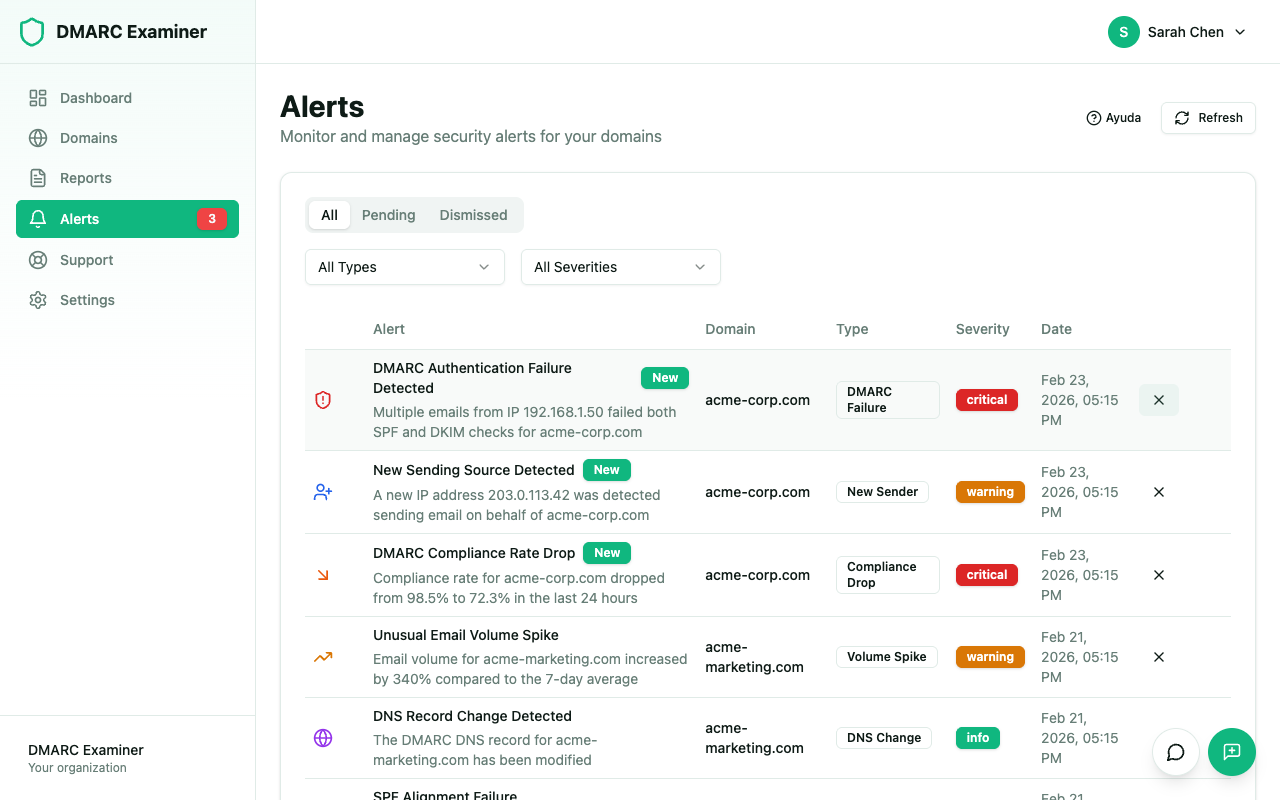
Alert Types
DMARC Examiner monitors five types of events:
DMARC Failure
Triggered when messages fail DMARC authentication for your domain. Helps you detect unauthorized senders or configuration issues.
New Sender
Notifies when a new IP address is detected sending email on behalf of your domain. Allows you to quickly identify new services or phishing attempts.
Volume Spike
Triggered when there is an unusual increase in email volume for your domain. Can indicate a spam campaign or an attack using your domain.
DNS Change
Alerts when your domain's DMARC, SPF, or DKIM DNS records are modified. Useful for tracking unexpected changes to your email authentication configuration.
Compliance Drop
Triggered when the DMARC compliance rate falls below expected levels. Useful for detecting configuration issues or ongoing attacks.
Alert Severities
Each alert is assigned one of three severity levels:
- Critical — Requires immediate attention
- Warning — Should be reviewed soon
- Info — Informational, no immediate action needed
Viewing Alerts
The Alerts page displays alerts for your organization. By default you only see alerts that still need your attention — resolved ones are kept for history but hidden from the main view.
Filter with:
- Status tabs — Active (default, shows unresolved alerts), Resolved (alerts you have dismissed or approved), All
- Type dropdown — Filter by alert type (DMARC Failure, New Sender, Volume Spike, DNS Change, Compliance Drop)
- Severity dropdown — Filter by severity level (Critical, Warning, Info)
To dismiss an alert, click the dismiss button on the alert row. Dismissed alerts move to the Resolved tab.
Sender Insight (New Sender alerts)
New Sender alerts include an info button (ℹ) that opens a detail panel with everything needed to judge whether the IP is legitimate:
- Reverse DNS — the hostname registered for the IP
- ASN and organization — who owns the IP block (e.g.
AS15169 Google LLC) - Country — location of the IP
- Authentication history — over the last 30 days on that domain: number of messages, SPF pass rate, DKIM pass rate, alignment, first/last seen
- Verdict — one of:
- Likely legit — SPF+DKIM pass and align for every message, and the ASN belongs to a recognized email provider (Google, Microsoft, Yahoo, Amazon SES, SendGrid, Mailgun, Mailchimp, …)
- Authenticated — SPF+DKIM pass and align, but the provider is not in our known-good list (still likely safe, worth a quick review)
- Suspicious — SPF or DKIM fails, or messages are not aligned to your header From
- Unknown — no authentication history for this IP yet
Approve & Trust
From the Sender Insight panel you can approve the sender in one click:
- Click Approve & trust this sender
- The IP is added to your Known IPs with an auto-derived name (e.g. "Google", "Amazon")
- The alert is resolved automatically
- If the same IP has triggered alerts on other domains of your organization, a follow-up dialog lets you resolve those in bulk with pre-selected checkboxes
This is the fastest way to handle new senders you recognize — no navigation between pages needed.
Report Breakdown (Volume Spike, DMARC Fail, Compliance Drop)
Alerts tied to a specific report — Volume Spike, DMARC Fail and Compliance Drop — expose the same info button (ℹ). Click it to open a breakdown of the report that triggered the alert.
The breakdown shows:
- Context banner — specific to the alert type:
- Volume Spike: "N messages (X× average)" with the 7-day baseline
- DMARC Fail: "DMARC pass rate: X%" highlighting failing records first
- Compliance Drop: "Compliance at X% (threshold Y%)" with failing senders on top
- Report totals — total messages, SPF pass rate, DKIM pass rate aggregated across the report
- Per-IP rows — for each source IP in the report:
- Count and rates (SPF, DKIM, alignment)
- Reverse DNS and ASN
- A status badge:
- Trusted — IP already in your Known IPs
- Authenticated — SPF+DKIM pass+aligned, not yet trusted
- Not aligned — authenticated but does not align with your domain
- Auth fails — SPF or DKIM fails
On DMARC Fail and Compliance Drop alerts, failing rows are sorted first so the problem is visible without scrolling.
At the bottom of the panel:
- It's OK, dismiss — mark the alert as resolved (moves it to the Resolved tab). Use this once you have looked at the breakdown and concluded the spike or failures are expected.
- Close — keep the alert active, close the panel.
This turns the alerts list into a single mission-control view: you can investigate the root cause of any alert and act on it without navigating between reports, records and alert history.
Alert Preferences
Go to Settings > Alerts to configure how you receive notifications:
- Email notifications — Enable or disable email alerts
- Digest frequency — Choose how often to receive alerts: instant, daily, weekly, or none
- Enabled types — Toggle individual alert types on or off to control which events generate notifications
Notification Channels
| Channel | Minimum Plan |
|---|---|
| Email alerts | Free |
| Configurable alerts (digest frequency, type selection) | Basic |
| Webhooks | Pro |