Reading RUA Reports
This guide explains how to interpret the data displayed when viewing an individual RUA report in DMARC Examiner.
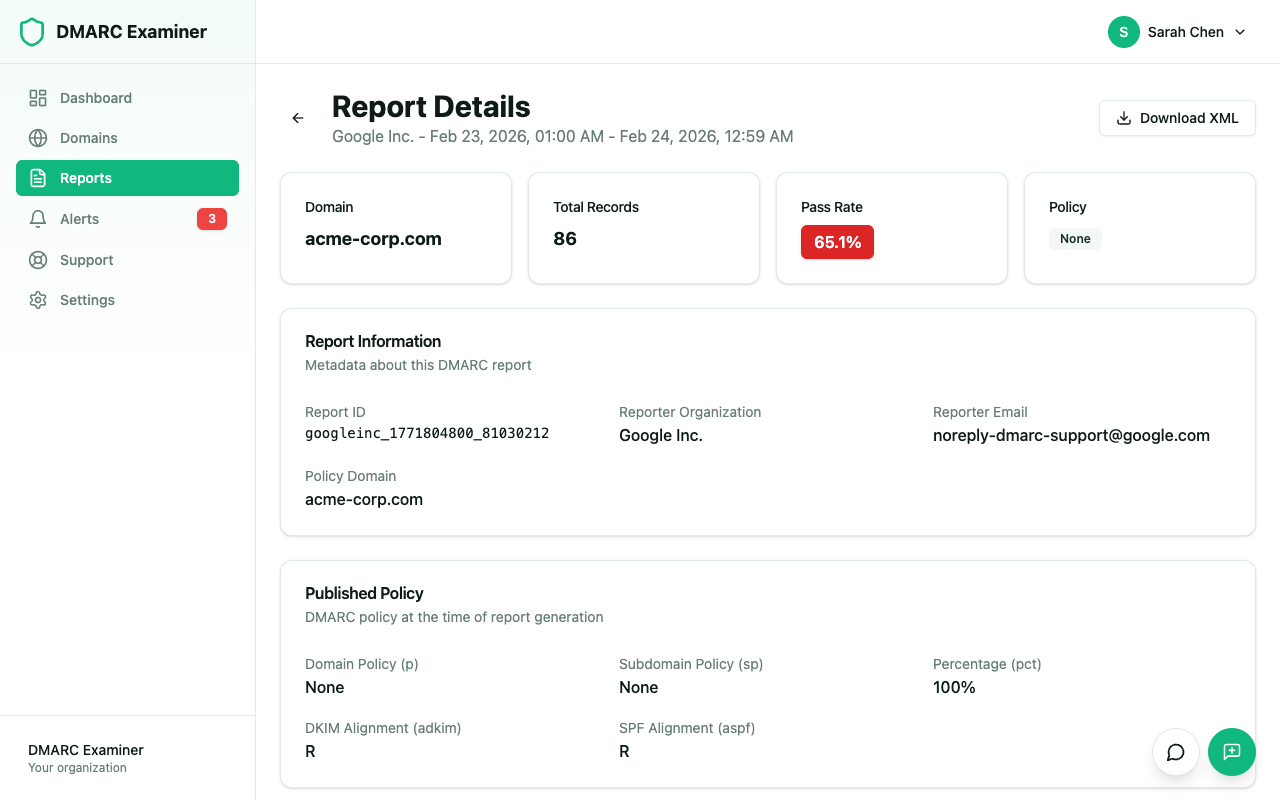
Summary Cards
At the top of the report detail page, four summary cards provide a quick overview:
- Domain — The domain this report covers
- Total Records — The number of individual records (source IP / result combinations) in the report
- Pass Rate — The percentage of messages that passed DMARC authentication
- Policy — The DMARC policy that was in effect during the report period
Report Information
Below the summary cards, the Report Information section shows:
- Report ID — The unique identifier assigned by the reporting organization
- Reporter Organization — The email provider that generated the report (e.g., google.com)
- Reporter Email — The contact email of the reporting organization
- Policy Domain — The domain the DMARC policy applies to
Published Policy
This section displays the DMARC policy settings that were published in DNS during the report period:
- Domain Policy (p) — The policy for the domain itself (none, quarantine, or reject)
- Subdomain Policy (sp) — The policy for subdomains
- Percentage (pct) — The percentage of messages to which the policy is applied
- DKIM Alignment (adkim) — Alignment mode for DKIM (relaxed or strict)
- SPF Alignment (aspf) — Alignment mode for SPF (relaxed or strict)
Records Tab
The Records tab shows a table with one row per unique combination of source IP and authentication results. The columns are:
- Source IP — The IP address of the server that sent the emails
- Geo/Known — Geolocation of the IP and whether it has been marked as a known source
- ASN — The Autonomous System Number associated with the IP
- CIDR — The network range the IP belongs to
- Count — The number of emails sent from that IP during the report period
- SPF Result — Whether SPF authentication passed or failed
- DKIM Result — Whether DKIM authentication passed or failed
- Disposition — The action taken by the receiver (none, quarantine, or reject)
- Status — The overall DMARC authentication result
Marking IPs as Known
You can mark an IP address as "known" directly from the records table. This is useful for identifying your own sending infrastructure (mail servers, marketing platforms, CRM tools, etc.) so that they are easily recognizable in future reports.
Statistics Tab
The Statistics tab provides aggregated visualizations of the report data, helping you quickly identify patterns in authentication results and sending sources.
Download XML
Use the Download XML button to download the original DMARC report in its raw XML format for external analysis or archiving.
Identifying Legitimate Sources
If you see an unknown IP with failing results, check whether it belongs to:
- An email marketing service (Mailchimp, Brevo, etc.)
- A CRM or sales tool
- Your own server that has not been correctly configured
If you do not recognize the source, it may be a phishing attempt. You can mark recognized IPs as "known" to keep your reports clean.