Autenticación de dos factores
Two-factor authentication (2FA) adds an extra layer of security to your account. When enabled, you will need to enter a verification code in addition to your password when signing in.
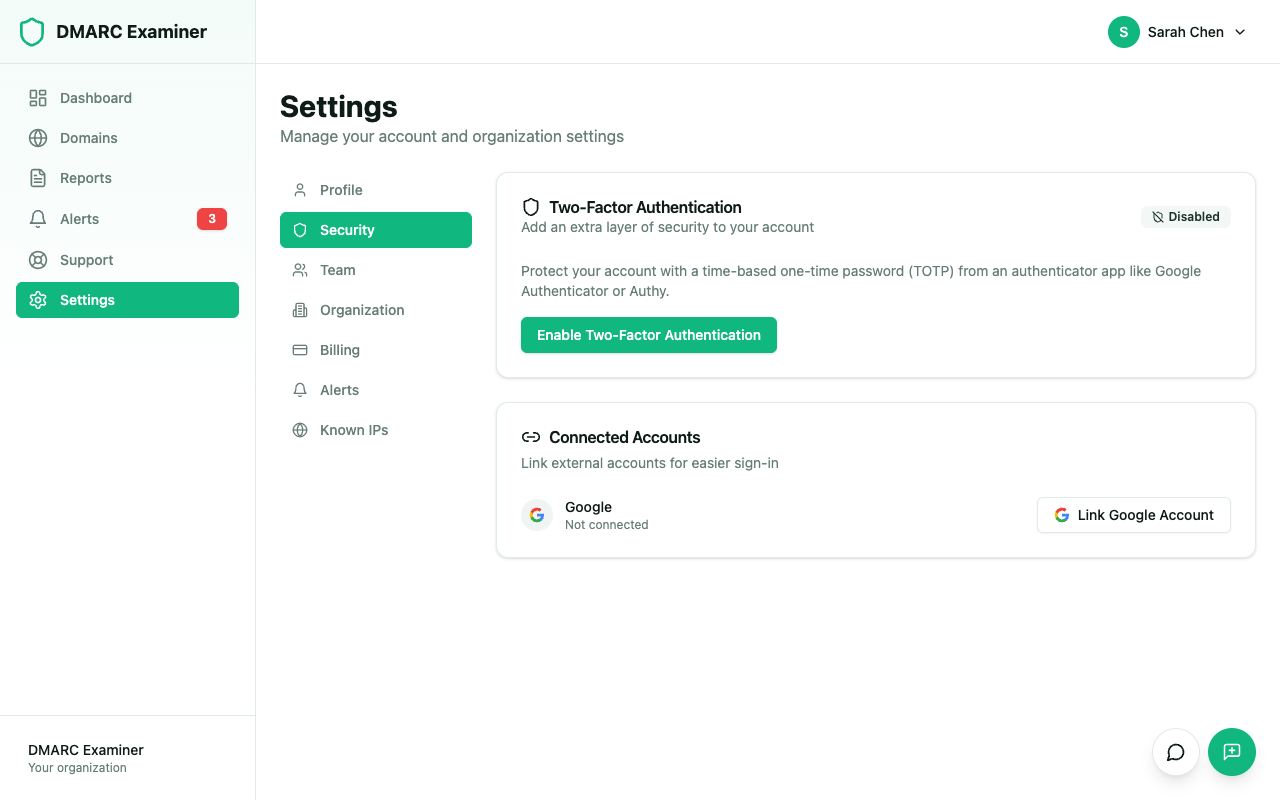
Enable 2FA
- Go to Settings > Security
- Click on Enable Two-Factor Authentication
- Scan the QR code with your authenticator app (Google Authenticator, Authy, 1Password, etc.)
- Enter the 6-digit code shown by the app to confirm activation
Signing in with 2FA
After entering your password correctly, the platform will ask for the 6-digit code from your authenticator app. The code refreshes every 30 seconds.
Recovery Codes
When you enable 2FA, 10 single-use recovery codes are generated. Store them in a safe place. You can use them if you lose access to your authenticator app.
To view or regenerate recovery codes, go to Settings > Security > Recovery Codes.
Disable 2FA
- Go to Settings > Security
- Click on Disable 2FA
- Enter a valid 6-digit code from your authenticator app to confirm