Iniciar sesión con Google
DMARC Examiner allows you to sign in with your Google account, eliminating the need to manage an additional password.
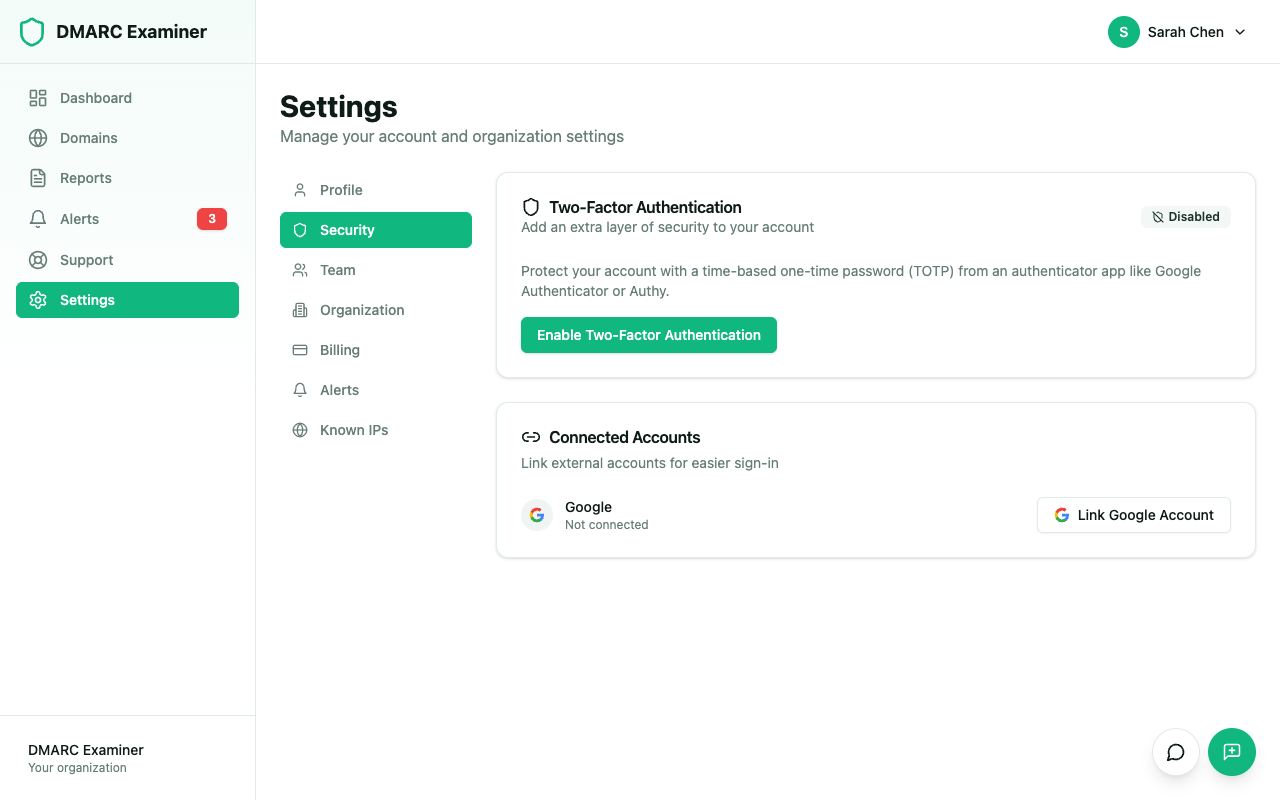
Link Your Google Account
If you already have a DMARC Examiner account with email and password:
- Go to Settings > Security
- Click on Connect Google Account
- Select your Google account in the pop-up window
- Confirm the link
From that point on, you can sign in with either your password or Google.
Register Directly with Google
If you do not have an account, you can create one directly with Google:
- On the registration screen, click on Continue with Google
- Select your Google account
- DMARC Examiner will automatically create your account using your Google account email
Unlink Google
To remove the Google link:
- Go to Settings > Security
- Click on Disconnect Google Account
- Make sure you have a password set before disconnecting, so you do not lose access
Frequently Asked Questions
Does DMARC Examiner access my Google emails?
No. We only use Google to verify your identity. No access to your email or any other Google service is requested.
Can I use 2FA if I sign in with Google?
DMARC Examiner's 2FA applies regardless of the sign-in method. If you have it enabled, the code will be requested after Google authentication.